uBoarded flightLog
Your personal flight log: all your flights, boarding passes and statistics in one place.
For iPhone · coming soon to the App StoreAdd boarding passes
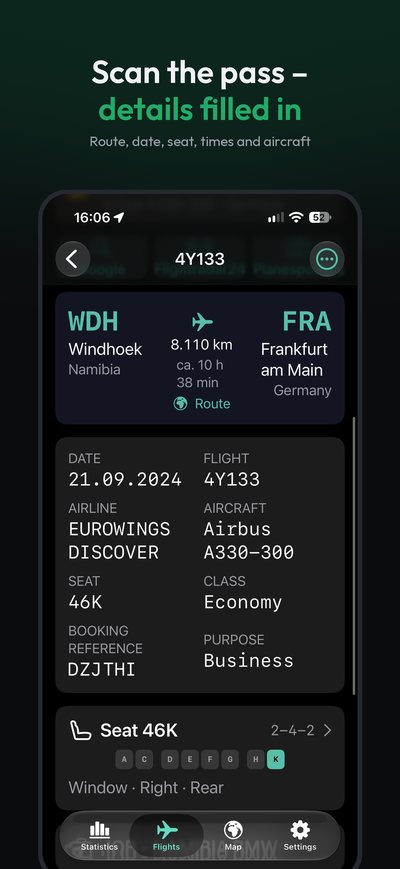
Scan the barcode live, or use a PDF, Wallet pass, photo or screenshot – old paper passes work too.
See it all
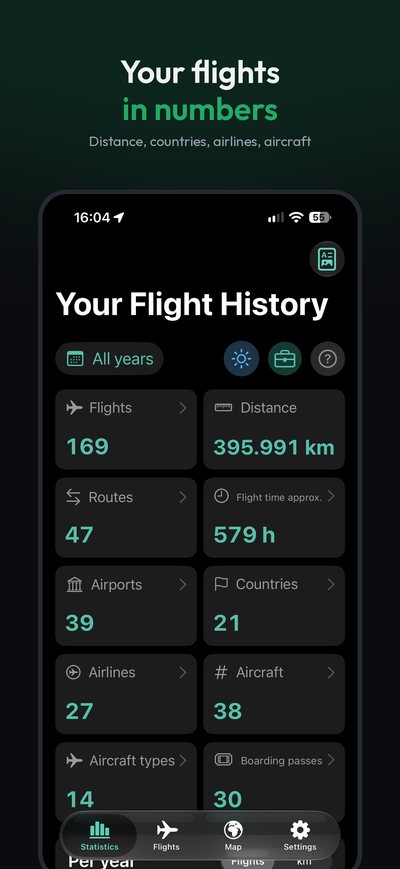
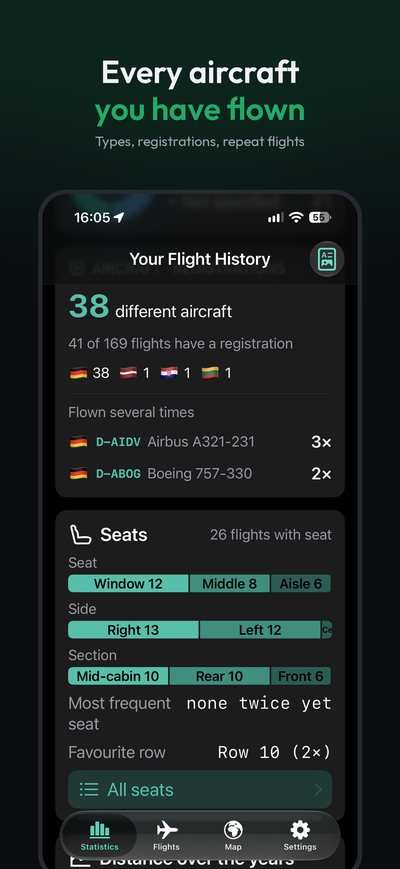
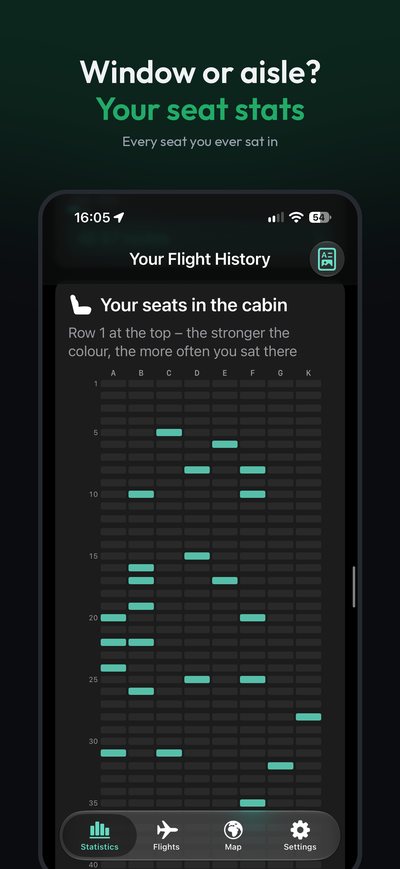
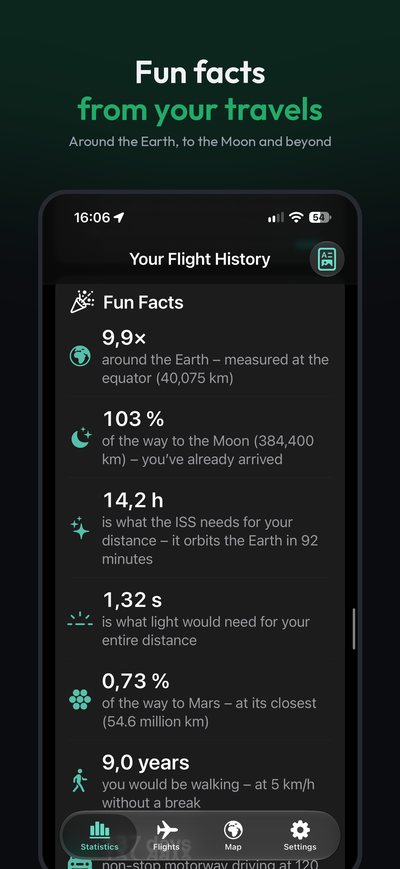
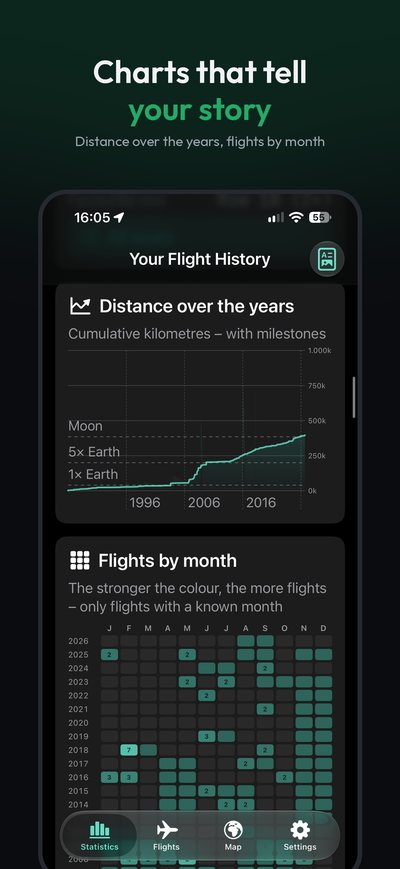
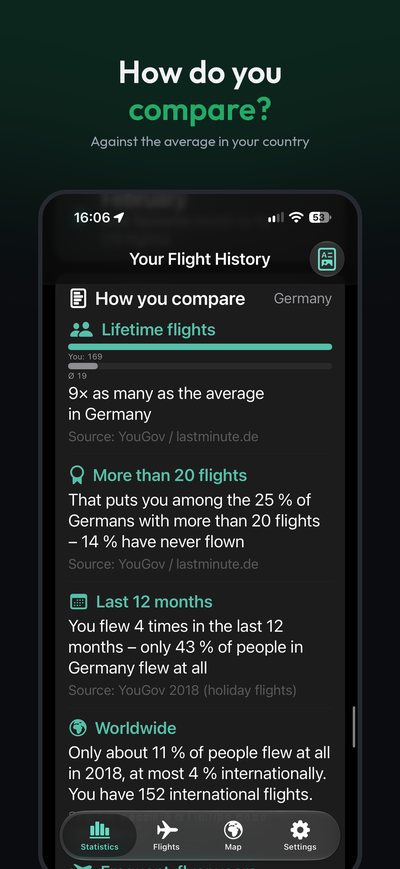
Distance, countries, airlines, aircraft types, seats, charts and fun facts.
Route network
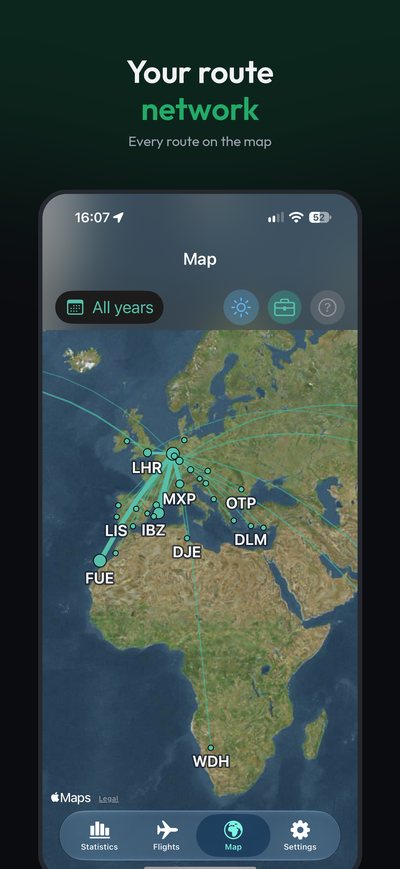
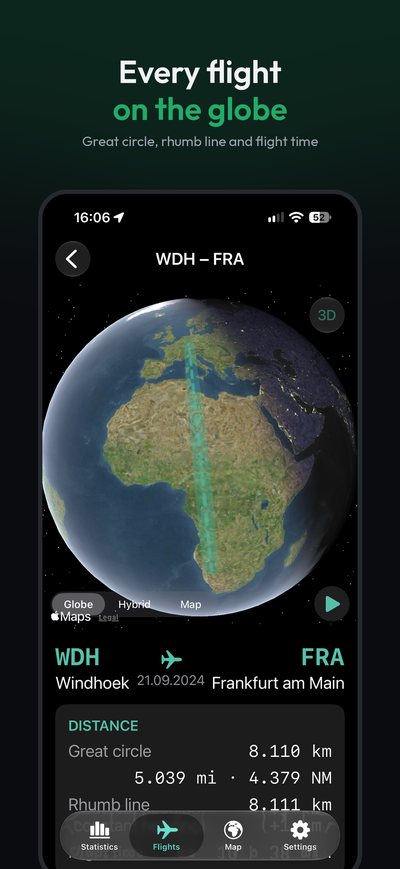
All your routes on the map and every single flight on the globe.
Private
No account, no ads, no tracking. Your data stays in your own iCloud Drive.
Screenshots
Frequently asked questions
How do I add a boarding pass?
Tap “+” in the flight list and choose:
- Scan barcode live – point the camera at the barcode, paper passes work too.
- From Files – PDF boarding passes or Wallet files (.pkpass).
- From Photos – a photo or screenshot of a boarding pass.
From Apple Wallet: open the pass › Share › uBoarded. The app reads route, date, flight number, seat and – if available – the times, and checks that the pass matches your name and the flight.
Can I add flights without a boarding pass?
Yes. “+” › “Add flight manually”. For older flights, just the year or month is enough.
How much does uBoarded cost?
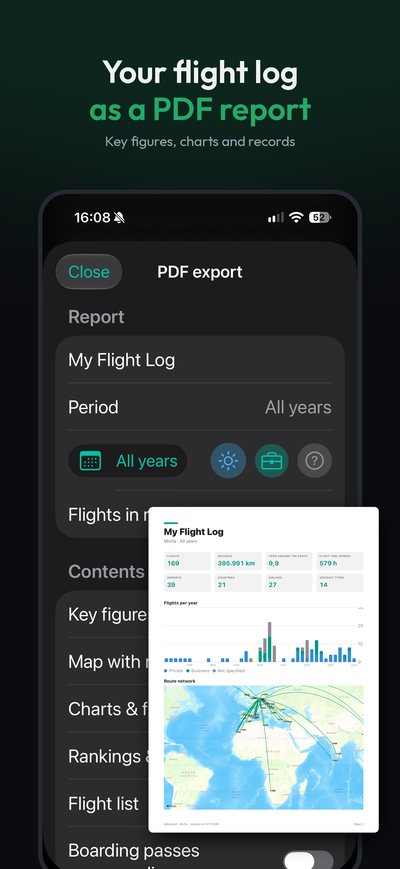
The app is free for up to 15 flights. You can view the PDF report in the preview for free.
uBoarded Pro is a one-time purchase of €5.99 (or local equivalent) – no subscription. It adds unlimited flights and lets you share, save and print the PDF report. Pro is available to your whole family via Family Sharing.
Your flights always stay visible and can be backed up at any time, even without Pro.
New iPhone – how do I get Pro back?
Sign in with the same Apple Account and tap Settings › uBoarded Pro › “Restore purchases” in the app. You won’t be charged again.
Where is my data stored?
In your iCloud Drive, in the “uBoarded” folder: the file flights.json and the folder “Anhaenge” with boarding passes and photos. You can view them in the Files app at any time. If iCloud Drive is off, the data is stored only on your iPhone – the app will let you know.
How do I back up my flights?
Settings › Import & Backup › “Create backup”. The backup contains all flights and attachments and can be restored later via “Import flights (folder)”. The app also creates an automatic snapshot before every change.
The aircraft type is wrong – why?
The type for a registration comes from adsbdb.com and describes the aircraft that carries this registration today. Registrations are sometimes reassigned. Please check older flights – the app never changes anything without your selection.
How do I delete all my data?
Delete the app, then delete the “uBoarded” folder in iCloud Drive (Files app) – or go to iOS Settings › [your name] › iCloud › Manage Storage › uBoarded.
Contact & support
Questions, bugs or ideas? Feel free to write:
The easiest way is from the app: Settings › Feedback & Support. App and iOS version are added to the email automatically – no flight data is sent.